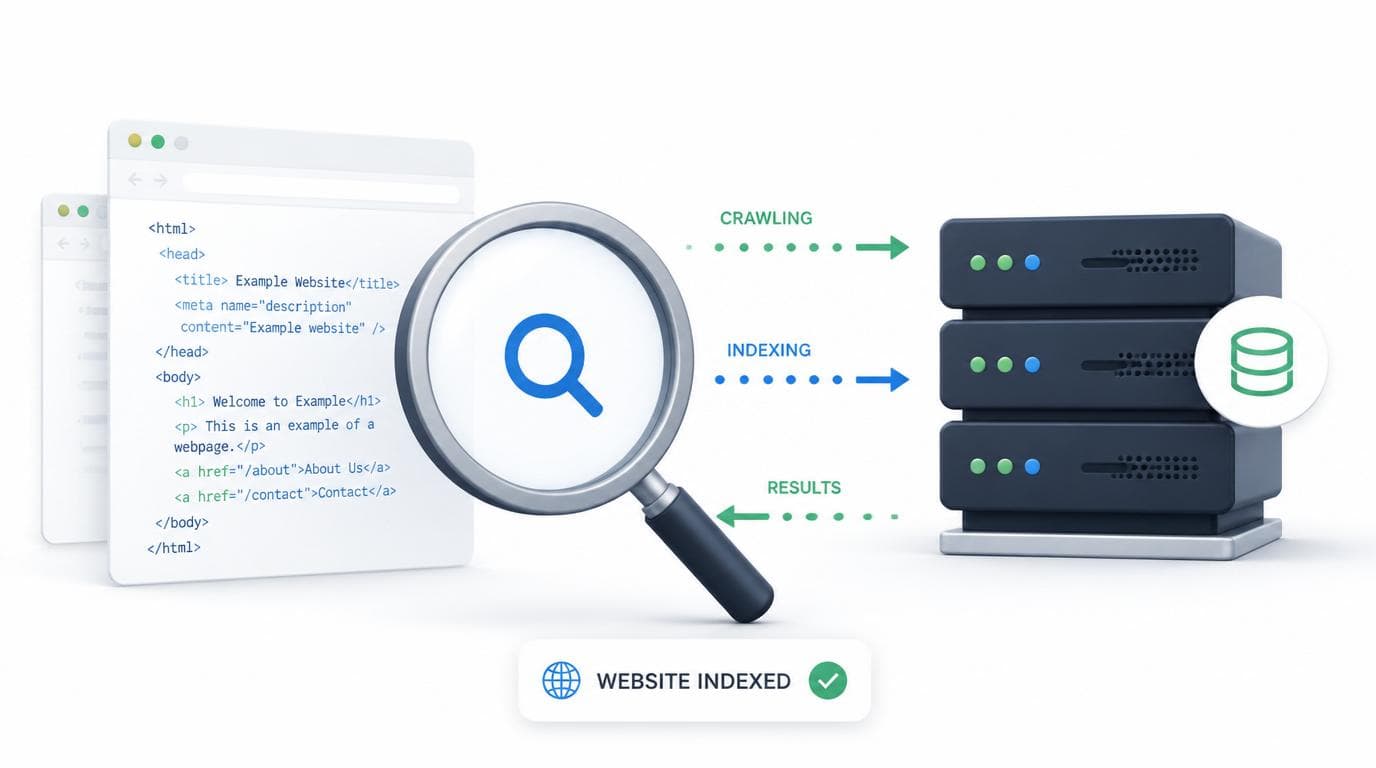
Part 1 of a series on practical SEO for developers where i cover How to get your site indexed, On-Page SEO, and Controling Your Search Appearance
You deploy your site. Everything works — the pages load, the styles render, your carefully written content is live on the internet. You submit a sitemap to Google Search Console, feel good about it, and wait.
A week later, you search for your own blog. Nothing.
This happened to me while getting my personal engineering blog off the ground, and the experience was frustrating in a very specific way: not because the process is complicated, but because it’s opaque. Tutorials tell you to “submit a sitemap” like that’s the end of the story. Search Console shows you vague errors with no clear resolution path. And Google, as always, tells you very little about what it’s actually thinking.
This post is my attempt to document what’s really going on — how Google finds and indexes your site, where things commonly break, and what you can realistically do about it. The code examples are in Next.js (App Router) and Django, since that’s my stack, but the concepts apply regardless of what you’re building on.
First, What Is Google Search Console Actually For?
Before anything else, it’s worth reframing what Search Console is, because developers often misunderstand its purpose on first encounter.
Search Console is not an analytics tool. It won’t tell you how many people visited your site or where they came from — that’s Google Analytics’ job. Search Console is a communication channel between you and Google’s crawler. It lets you tell Google things about your site (here are my URLs, here’s what I want you to index) and lets Google tell you things back (here’s what we found, here’s what we couldn’t crawl, here’s why we rejected your sitemap).
The implication of this framing matters: you’re not configuring something and walking away, you’re opening an ongoing dialogue. You’ll need to check it regularly, especially after publishing new content or making structural changes to your site.
Verifying Your Site
Before you can do anything in Search Console, you have to prove you own the domain. Google offers several verification methods — a DNS TXT record, an HTML file upload, a meta tag in your page’s <head>, or through Google Analytics/Tag Manager if you already have those set up.
For a Next.js frontend with a Django backend, the meta tag method is usually the path of least resistance. In the Next.js App Router, you can add the verification tag through the metadata export in your root layout — no HTML editing required:
// app/layout.tsx
export const metadata: Metadata = {
  // ...your other metadata
  verification: {
    google: "your-verification-code-here",
  },
};
Next.js will automatically render this as <meta name="google-site-verification" content="..."> in the <head> of every page. Once you deploy, go back to Search Console and click “Verify” — it’ll fetch your homepage and confirm the tag is there.
If your Django app handles some public-facing pages directly (rather than everything going through Next.js), make sure those templates also include the verification tag, or use the DNS method instead, which covers your entire domain regardless of how pages are served.
Sitemaps: A Suggestion, Not an Instruction
A sitemap is an XML file that lists the URLs on your site, optionally with metadata about when each page was last updated. You submit it to Search Console so Google knows where to find your content.
Here’s the important nuance that most guides gloss over: a sitemap does not force Google to crawl or index anything. It’s a strong hint, not a command. Google will still decide, based on its own signals, which URLs are worth visiting and which are worth showing in search results. A sitemap from a new site with no inbound links and no crawl history is taken less seriously than one from an established domain. That’s not a reason not to submit one — it absolutely helps — but it calibrates your expectations appropriately.
Generating a Sitemap in Next.js
The App Router makes this straightforward. Create a sitemap.ts file at the root of your app directory and export a function that returns your URL list:
// app/sitemap.ts
import { MetadataRoute } from "next";

export default async function sitemap(): Promise<MetadataRoute.Sitemap> {
  // Fetch your dynamic routes from your API or database
  const postsResponse = await fetch("https://your-django-api.com/api/posts/");
  const posts = await postsResponse.json();

  const postEntries = posts.map((post: { slug: string; updated_at: string }) => ({
    url: `https://yourdomain.com/blog/${post.slug}`,
    lastModified: new Date(post.updated_at),
    changeFrequency: "monthly" as const,
    priority: 0.8,
  }));

  // Static routes defined manually
  const staticRoutes = [
    {
      url: "https://yourdomain.com",
      lastModified: new Date(),
      changeFrequency: "weekly" as const,
      priority: 1.0,
    },
    {
      url: "https://yourdomain.com/about",
      lastModified: new Date(),
      changeFrequency: "yearly" as const,
      priority: 0.5,
    },
  ];

  return [...staticRoutes, ...postEntries];
}
Next.js will serve this at /sitemap.xml automatically. Visit https://yourdomain.com/sitemap.xml to confirm it’s rendering before you submit it anywhere.
Generating a Sitemap in Django
If Django serves any public pages directly, you’ll want a sitemap on that side too. Django’s built-in django.contrib.sitemaps module handles this cleanly:
# sitemaps.py
from django.contrib.sitemaps import Sitemap
from .models import Post

class PostSitemap(Sitemap):
    changefreq = "monthly"
    priority = 0.8

    def items(self):
        # Only include published posts
        return Post.objects.filter(status="published").order_by("-published_at")

    def lastmod(self, obj):
        return obj.updated_at

    def location(self, obj):
        # This must match the URL your frontend serves the post at
        return f"/blog/{obj.slug}"
# urls.py
from django.contrib.sitemaps.views import sitemap
from .sitemaps import PostSitemap

sitemaps = {"posts": PostSitemap}

urlpatterns = [
    path("sitemap.xml", sitemap, {"sitemaps": sitemaps}, name="sitemap"),
    # ...
]
The Django + Next.js URL Problem
There’s a subtle issue specific to this split-stack architecture worth calling out. Your Django backend knows about your blog posts as database records, and your Next.js frontend is what actually serves the /blog/[slug] pages to users. But your robots.txt and potentially your sitemap live at the domain root — the same domain your Next.js app is likely serving.
The risk is that your Django sitemap generates URLs pointing to routes only Next.js knows how to render, and if Django is also handling some requests at the same domain (via a reverse proxy like Nginx), things can get inconsistent. The cleanest solution is usually to generate one unified sitemap from Next.js, fetching the dynamic post data from your Django API at build time or on-demand. This way there’s a single source of truth and no risk of the two sides disagreeing on what URLs exist.
When Search Console Rejects Your Sitemap
This is where things get genuinely frustrating. Search Console will sometimes reject a submitted sitemap and give you an error that points to a line number without explaining what’s actually wrong. I ran into this myself and spent more time than I’d like to admit trying to decode the feedback.
The most common causes, roughly in order of how often I’ve seen them:
URL and domain mismatch. Every URL in your sitemap must use exactly the same protocol and domain you verified in Search Console. If you verified https://yourdomain.com (no www) but your sitemap contains https://www.yourdomain.com/..., Google will reject it. Trailing slash consistency matters too — https://yourdomain.com/about and https://yourdomain.com/about/ are treated as different URLs. Pick one convention and use it everywhere.
URLs returning non-200 status codes. Google fetches a sample of URLs from your sitemap to validate them. If any return a 404, 500, or redirect (even a valid 301), Search Console may flag the sitemap as problematic. Make sure every URL in your sitemap actually resolves cleanly before submitting.
Encoding issues. Certain characters in URLs — ampersands, spaces, non-ASCII characters — need to be properly encoded in XML. An unencoded & in a URL (like /search?q=one&page=2) should be & in XML. Most sitemap generators handle this automatically, but if you’re constructing XML by hand or with a custom template, it’s easy to miss.
XML structure errors. The sitemap XML schema is strict. Missing closing tags, incorrect namespace declarations, or an extra byte-order mark at the start of the file can all cause silent failures. Before submitting, run your sitemap through an XML validator — any online XML linter will do — and separately use the sitemap testing tool within Search Console itself.
Your sitemap references URLs that redirect. Even if a redirect is intentional and correct (old slug redirecting to a new one, for example), include only the final destination URL in your sitemap, not the redirect source. Google wants to know where to go, not where you used to be.
When Search Console gives you a line number error and nothing else, copy your sitemap XML into an offline validator first. If the XML itself is valid, the problem is almost certainly one of the URL issues above — check each URL in that area of the file individually using the URL Inspection tool (more on that next).
Manual Indexing Requests: What They Actually Do
Once Search Console is set up and your sitemap is accepted, there’s one more tool worth understanding: the URL Inspection tool, and specifically the “Request Indexing” button.
When you paste a URL into the URL Inspection tool, Search Console fetches it in real time and shows you what Google currently knows about that page — whether it’s indexed, when it was last crawled, what the page looks like to Googlebot, and whether there are any issues. The “Request Indexing” button puts that specific URL into a priority crawl queue.
A few important caveats about this:
It is not a guarantee of indexing. It moves your URL higher in the queue, but Google still evaluates the page after crawling it and decides whether it’s worth indexing based on quality signals. For a new site, Google may inspect the page, decide it doesn’t yet have enough authority or unique value to rank, and pass on it. That’s not a bug — it’s the system working as intended.
It is not fast. “Priority queue” is relative. Depending on how busy Googlebot is and how much authority your domain has, it could take days before anything changes. Check back in Search Console a week or two later rather than the next morning.
It is rate-limited. You get a limited number of manual indexing requests per day. Don’t burn them on pages that aren’t ready — make sure the page has good content, correct meta tags, and no crawl errors before requesting indexing.
For a new blog, the practical workflow is: submit your sitemap, then use URL Inspection to manually request indexing for your most important pages (your homepage, your about page, your first few posts). Let the sitemap do the work for everything else over time.
robots.txt: The One File That Can Silently Break Everything
Your robots.txt file tells crawlers which parts of your site they’re allowed to access. It lives at the root of your domain (https://yourdomain.com/robots.txt) and is one of the first things Googlebot fetches when it visits your site.
Most developers set this up once and never think about it again — which is fine, unless something goes wrong. Here’s a sane default for a Next.js + Django site:
User-agent: *
Allow: /

Sitemap: https://yourdomain.com/sitemap.xml
This tells all crawlers they’re allowed to access everything, and points them to your sitemap. That’s usually all you need.
The two mistakes that can cause serious, silent problems:
Accidentally deploying Disallow: / to production. This is more common than you’d think. Many project templates ship with a robots.txt that blocks all crawlers — which makes sense during development, when you don’t want your staging environment indexed. If you forget to update this before launch, Googlebot will politely respect your instruction and crawl nothing. Your site will be invisible in search results, and Search Console may show a coverage error that’s easy to misread. Always double-check robots.txt is correct before and after launching.
Blocking JavaScript or CSS files. Google doesn’t just read your HTML — it renders your pages the way a browser would, executing JavaScript and applying stylesheets. If your robots.txt blocks access to your /_next/static/ directory or your Django static files, Googlebot may see a broken, unstyled page and rank it poorly or skip it. Don’t add Disallow rules for static assets unless you have a specific reason.
In Next.js, you can generate your robots.txt programmatically using a robots.ts file in your app directory, the same way as the sitemap:
// app/robots.ts
import { MetadataRoute } from "next";

export default function robots(): MetadataRoute.Robots {
  return {
    rules: {
      userAgent: "*",
      allow: "/",
    },
    sitemap: "https://yourdomain.com/sitemap.xml",
  };
}
This approach is cleaner than maintaining a static file because it keeps your sitemap URL and domain name in one place and benefits from any environment variable configuration you already have set up.
The Honest Part: Patience Is a Technical Requirement
I want to be upfront about something that most SEO posts downplay. For a new site — one without an established crawl history, without other sites linking to it, without any demonstrated track record — the process described in this post will get you technically correct and ready to be indexed, but it won’t get you indexed quickly.
Google’s crawl priority is influenced by domain authority, inbound links, and how often your content changes. A new site scores low on all of these by default. Search Console may show your URLs as “Discovered — currently not indexed” for weeks, which means Google found them but decided they weren’t urgent enough to crawl yet. That’s not a failure state — it’s the normal starting point.
The things that accelerate it over time are outside the scope of this post (content quality, consistency, and eventually inbound links), but the foundation you’re building here matters: a clean sitemap, a correctly configured robots.txt, verified ownership, and manual indexing requests for your most important pages is the baseline that makes everything else possible.
What’s Next
Getting Google to see your site is only step one. In the next post in this series, we’ll look at what happens after the crawler arrives — specifically, what signals it reads on your pages to determine what they’re about and whether they’re worth ranking. That means title tags, meta descriptions, heading structure, canonical URLs, and the surprisingly nuanced question of what “keywords” actually means in practice today.
Part 2: What Google Reads When It Finally Visits Your Site: On-page SEO